Document Overview
Viewing all of your documents, navigation, and overview.
In the document overview, you can see all of your documents in the relevant "widget," as well as a summary of the most important information from the documents.
General
By default, you can see
Which company the document belongs to
The most important key information (Vendor, invoice number, due date, and amount)
Document type (Invoice / Credit Memo)
If you use projects and have more than one project associated with a document, they will all be displayed in the overview.

And depending on which "widget" you’re in, some fields will change to display relevant information, such as:


Search
If you’re looking for something specific, you can use søgebaren or the shortcut CTRLF. Here, you can filter by company and document type, as well as search by, for example, invoice number, document number, vendor, etc.

There is also an advanced search option that searches across all widgets if you cannot find the document in the widget you are currently viewing. Learn more at here.
Actions
The primary action varies depending on which widget you’re in, but the process for selecting which documents the action should apply to is the same.
No documents selected
If no documents are selected, the primary action will apply to all documents in the list.
For example, if you click “Påmind tildelte” without selecting any documents, it will be applied to all documents in the “widget.”

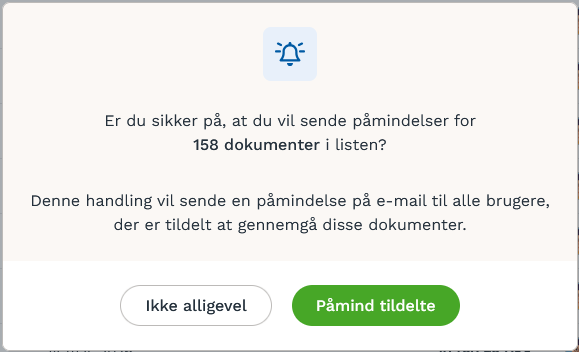
Similarly, if you click “Behandl dokumenter” from the “Nye dokumenter,” it will start a queue with all new documents. On “document page,” it will show how many you are currently processing.

Some documents selected
Of course, you can select individual documents by checking the box to the left of the documents you want to run the action on.

A pop-up will then appear at the bottom showing how many documents you’ve selected, as well as the option to apply the action only to the selected documents.

General actions
Excel export
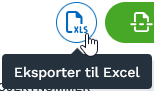
From all widgets, you can also generate an Excel export, which works the same way regardless of whether you’ve selected no documents or a subset.
Customization
You can change how many invoices are displayed at a time in the lower-left corner.

You can also change which columns are displayed, as well as their order.
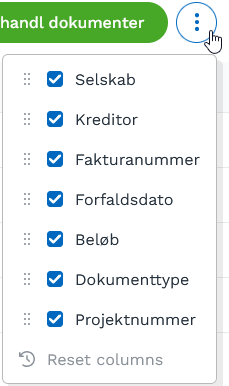
Move the columns by dragging them into the desired order.

Was this helpful?
Still need help? Ask the team