Mobile Guide
Add to Home Screen
You can add the mobile version of BatchFlow to your home screen, just as if it were an app. Depending on your phone, you can see how to do this below.
iPhone
Tap the
3 prikkericon in the bottom right cornerTap
Del
Tap “
Vis mere” and then “Føj til hjemmeskærm”
Confirm that “
Åbn som webapp” is turned on and tap “Tilføj”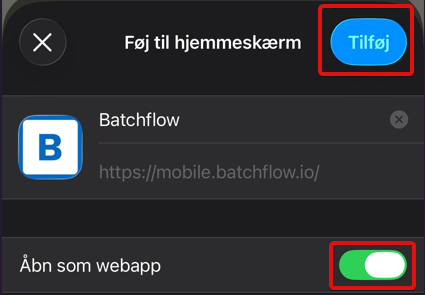
The app is now ready on your home screen

Android
Open the Chrome browser. It’s important that you use Chrome, as this feature isn’t supported in other browsers. You can still use your favorite browser for everyday use.
Click the "
3 prikker" icon in the top right cornerClick
Tilføj til hjemmeskærm
Click "
Installer"
The app is now ready on your home screen
General
Search
At the top, you can search for one or more documents by entering, for example, a vendor or invoice number.

Sorting
If you click on the "2 pile" button, you can change the sort order of the documents.

Choose between vendor name, amount, due date, or invoice date, and click “Anvend.”

Inbox
When you log in on your mobile device, your inbox will open, displaying all the documents awaiting your approval. In the overview, you can see information such as the creditor, amount, due date, any comments, and how many people have approved the document before you. At the top, you can see how many documents you have pending approval.

Document Details
When you click on a document, the entire document will be displayed.

Actions
Click the icon to approve, reject, or put on hold.


The
Godkend The "Approve" button approves the document and forwards it to the next approver if there are multiple approvers in the workflow.

Reject
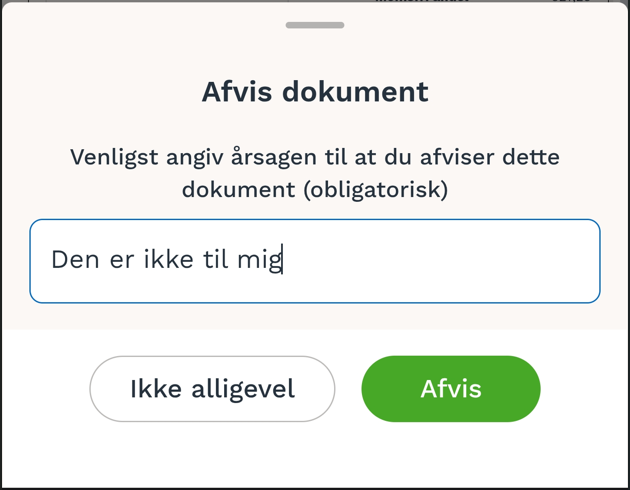
If you do not want to approve the document for any reason, you can click the “Afvis” button.

When you reject a document, you must provide an additional message to the accounting department.
Put on Hold
You can put the document on hold if you do not want to approve it at this time, but, for example, need to clarify something with the supplier first.

When you put a document on hold, you must select a reason and, optionally, provide an additional note so that the accounting department can also track why the document has not yet been processed.

The document can then be found at As a team.
See flow
Here you can view information about the current flow.

The overview will show who approved the document before you and who will receive it next.

Comments
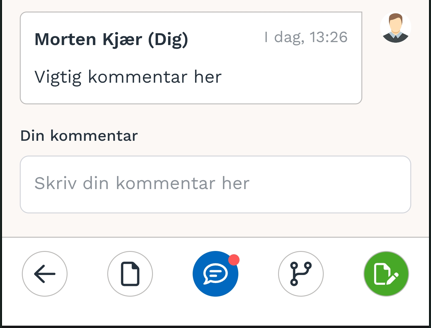
If there are comments on a document, they will be indicated by a red dot.

When you click on “Comments,” you’ll be able to view all comments and add new ones.
Navigation
The “2 pile” buttons at the top allow you to jump to the next or previous document.

On Hold
If you have documents on hold, they will be marked with a red dot.

They will all appear in the overview, along with the reason they were placed on hold.

On the document itself, you can return it to your inbox or view the reason in the additional note explaining why the document is on hold.


Archived
This section displays all the documents that have been assigned to you.

You can search for specific documents and view their status. Click on a document to view the details.

Notifications
To view notifications, click on “klokken.”

Here you can see, for example, if a document you were assigned has been put on hold.

Click here to mark them all as read.

Profile Page
To open your profile page, click on your profile picture.
Out of Office
If you’re on vacation or away for an extended period, you can set an out-of-office message so that all your documents are automatically assigned to someone else.

You can select the period during which you’ll be away.

Or you can choose not to specify an end date for an indefinite period.

Finally, you must select a substitute in each group you’re a member of. The system automatically remembers the last substitute you selected.

Switch Organization
If you’re a member of multiple organizations, you can switch which one is displayed by clicking “Skift organisation.”

In the overview, you’ll be able to see how many documents you have in your inbox and on hold.

Was this helpful?
Still need help? Ask the team