Email Notifications and Alerts
Select which email notifications to send and when
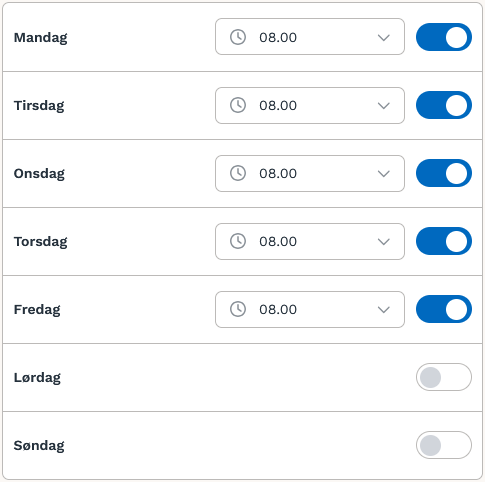
By default, email notifications are sent to all users with documents awaiting approval at 8:00 a.m. every weekday.
Global Settings
Under Global Settings, you can completely disable email notifications if you do not want emails to be sent to users who have documents awaiting approval. Manual reminders, password resets, etc., will still be sent.

Notification Types
You can also set up additional warnings and alerts, which will appear in a separate window in your daily email, as well as on the dates of the documents in the document list.
You can choose when each warning should appear or disable them entirely if you do not wish to be notified.
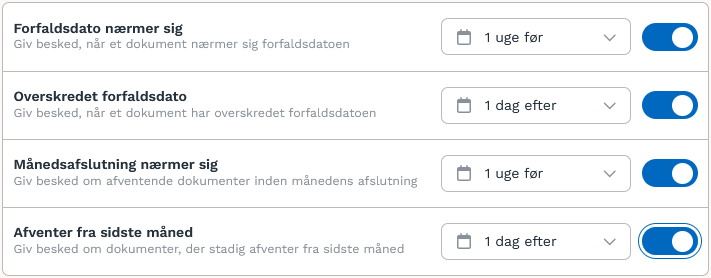
Due Date Approaching
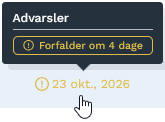
This displays a yellow warning x number of days before the document’s due date.
Due date passed
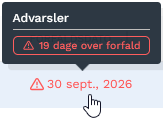
This displays a red warning x number of days past the due date after the document has expired.
Month-end is approaching
This displays a yellow warning indicating x number of days on the invoice date before the document’s date falls outside the month. For example, the invoice date for an invoice dated October 15 will turn yellow 5 days before November 1.
Pending from last month
This displays a red warning x number of days after the document’s date has rolled over into a new month. For example, the invoice date for an invoice dated October 15 will turn red on November 1.
Examples

Delivery Schedule
You can configure here which days the daily email should be sent, as well as the time.
Was this helpful?
Still need help? Ask the team