Roller
View and manage the roles in your organization
Roles allow you to specify exactly what users in different roles should have access to in terms of widgets and settings.
Overview
The overview shows all the different roles available in BatchFlow, as well as how many users have been assigned each role. Users can only have one role.

Under Actions, you can manage the settings for each role by clicking "Se" next to the desired role.

Settings
Some of these settings are also available in the settings for widgets. If two settings conflict, the most restrictive one will apply.
All settings are per role—so you can have certain functions and access rights in one role that do not apply to other roles.
After changing the settings, remember to click "Gem ændringer."

And if you’ve made changes you regret, you can click “Nulstil ændringer” to undo the most recent changes you’ve made.

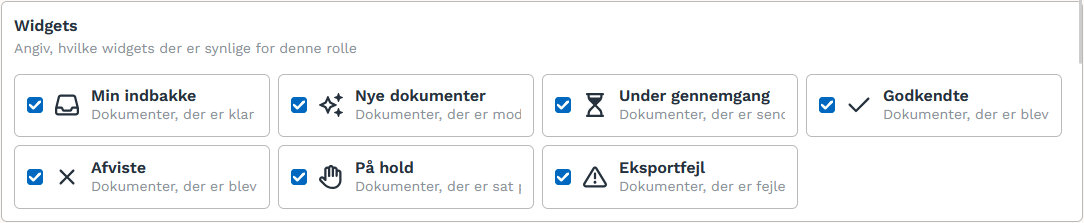
Widgets
Select which widgets users in the role should have access to. There are limits on how many widgets you can assign to each role. If a specific user needs more permissions, you should also consider assigning them a higher role instead, as these changes will apply to all users in that role.
Archive
Select which archives users in the role should have access to.

Accounting
Grant access to whether users in the role can view or edit the accounting.

Document fields
Grant access to whether users in the role can view or edit main fields on the document.

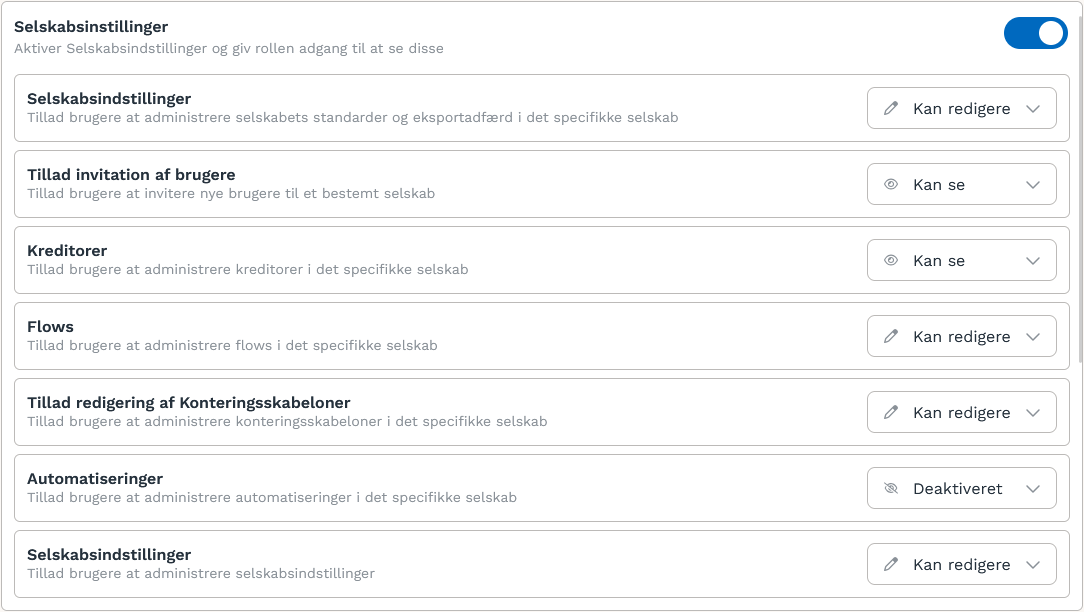
Company settings
Here you can control which settings users in the role should have access to for the relevant companies.
Global settings
This covers all administrative settings if certain users or roles are to have access to some administrative actions, but not all. These cannot be disabled for the administrator role.

Approval Rights
You can choose whether users should be allowed to view amount limits for themselves and other approvers on the invoices they receive for approval.

Projects
You can choose who is allowed to view and change the project manager for projects.

See projects for more information.
Projects are not enabled by default. Contact Futurelink to have this set up
Was this helpful?
Still need help? Ask the team